Call Sales: +91 7519024625 +91 7519024625Customer Support
MpxHR

Step-by-step tutorials

Short guides for every common task, with screenshots. Prefer video? See the Videos page.

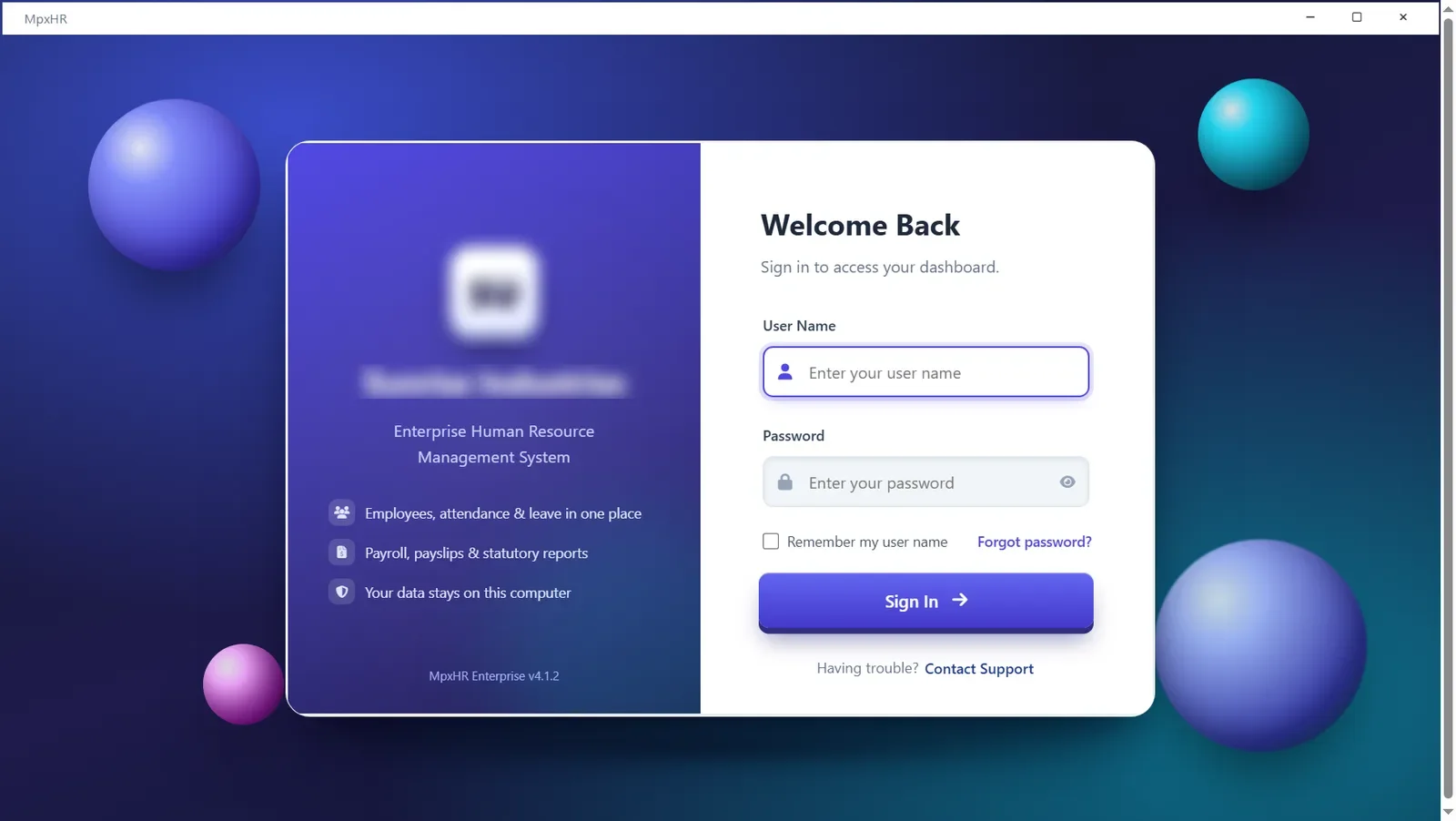
1Install and log in for the first time

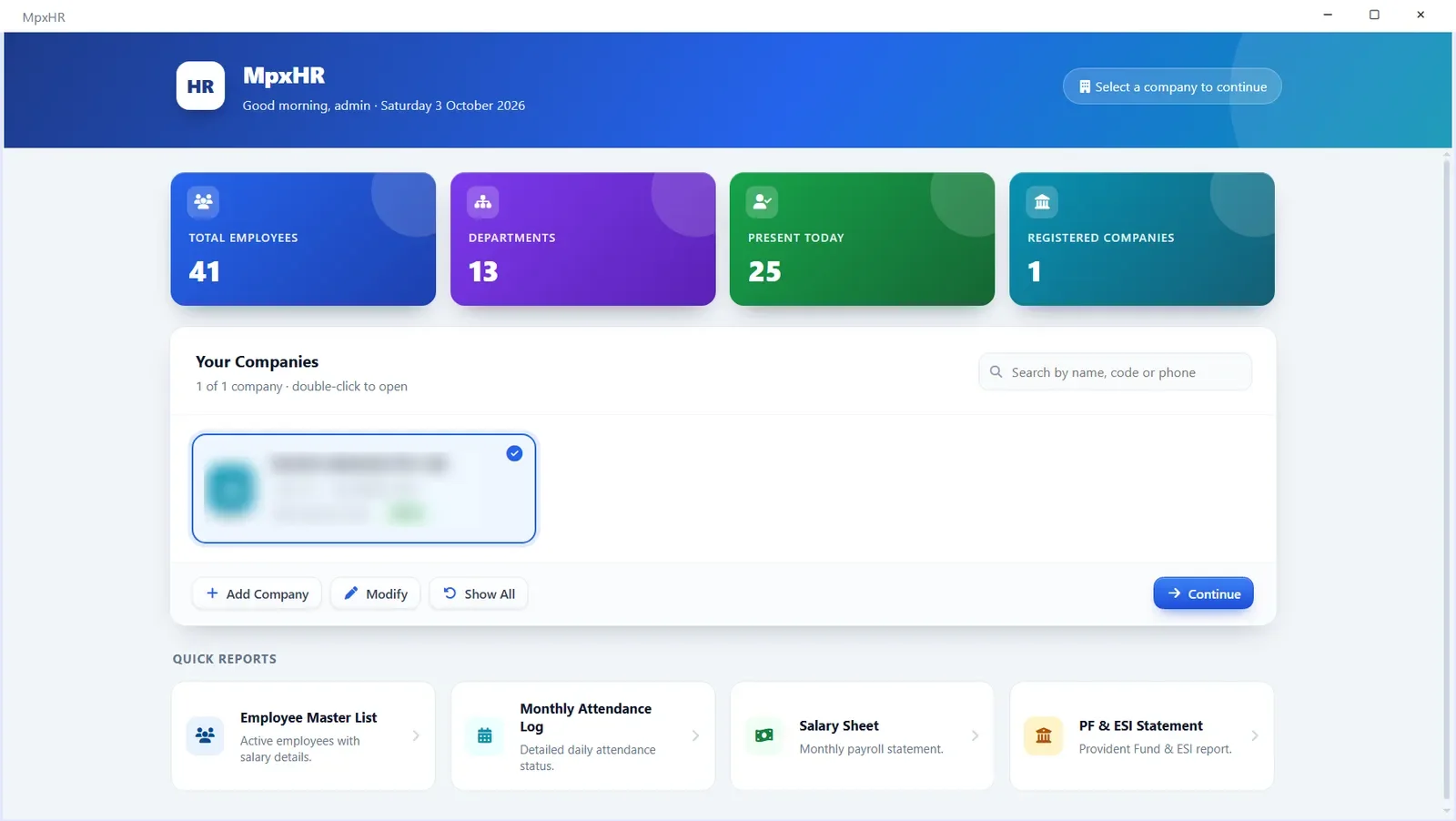
  1. Run the MpxHR installer you received and follow the screens (Windows may show "Unknown publisher": click More info then Run anyway).
  2. Start MpxHR Enterprise from the desktop icon.
  3. Sign in with the user name and password given to you. Tick Remember my user name if you like; use the eye icon to show the password.
  4. After 5 wrong attempts the login pauses for 30 seconds (doubling each time up to 15 minutes), so wait and try again.
  5. Pick your company on the next screen to open the dashboard.
Install and log in for the first time

2Set up your company, branches and departments

  1. Open Masters › Companies. The General tab holds the name, code, address and logo (the logo prints on payslips); the Statutory, PF / ESI and Bank tabs hold PAN, TAN, GSTIN, PF and ESI details.
  2. Add Branches, Departments and Designations from the Masters ribbon.
  3. Open Masters › Settings to check Payroll & Leave rules and Module Rights.
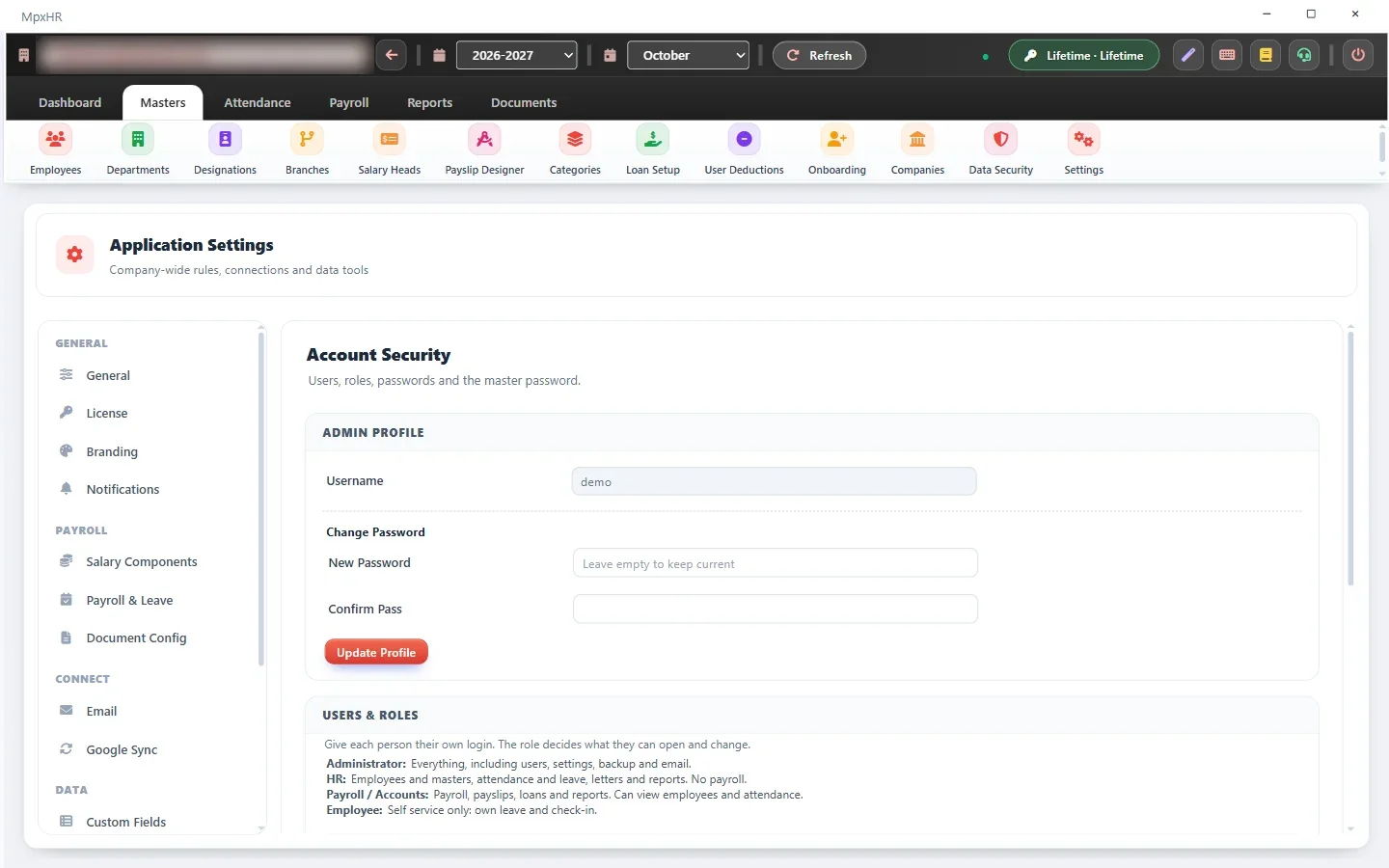
  4. Create extra logins for other staff under Settings › Security & Users.
Set up your company, branches and departments

3Add employees, one by one or from Excel

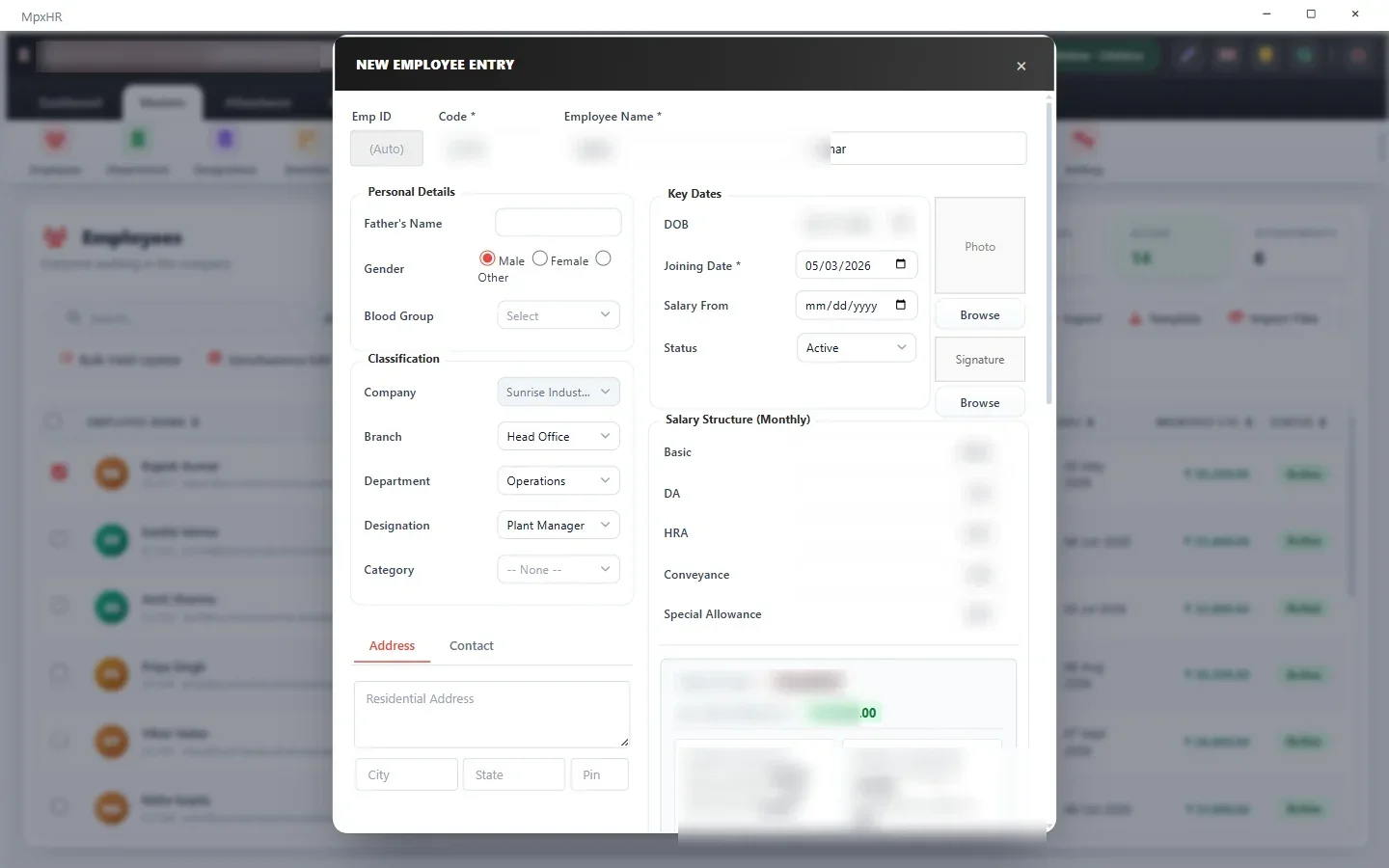
  1. Open Masters › Employees and click Add. Fill in the employee code, name, joining date and salary structure.
  2. Use the Photo and Signature browse buttons; the picture is checked against your limits and resized if very large.
  3. For many employees click Template, fill the Excel sheet and click Import.
  4. Read the preview: errors and warnings are listed (duplicate codes, unreadable dates and so on). Nothing is saved until you confirm.
Add employees, one by one or from Excel

4Bulk-upload photos, signatures and documents

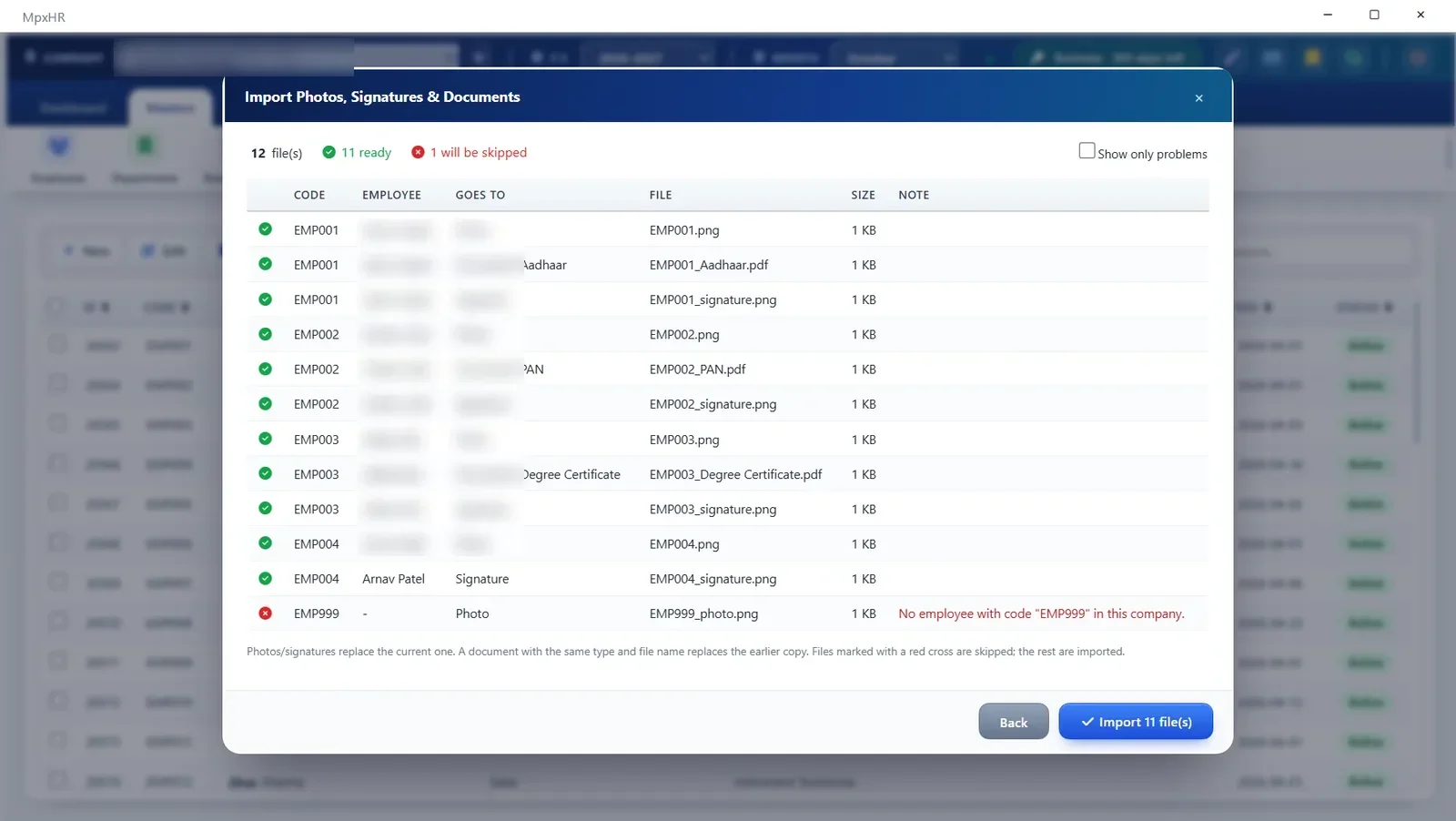
  1. In Employees click Import Files and choose a source: local folder, Excel sheet or Google Drive.
  2. Name files after the employee code, for example EMP001.jpg (photo), EMP001_signature.png or EMP001_Aadhaar.pdf.
  3. Click Preview to see every file with the employee it matches and anything that will be skipped.
  4. Click Import. Set the size and file-type limits in Settings › Files & Uploads.
Bulk-upload photos, signatures and documents

5Mark and import attendance

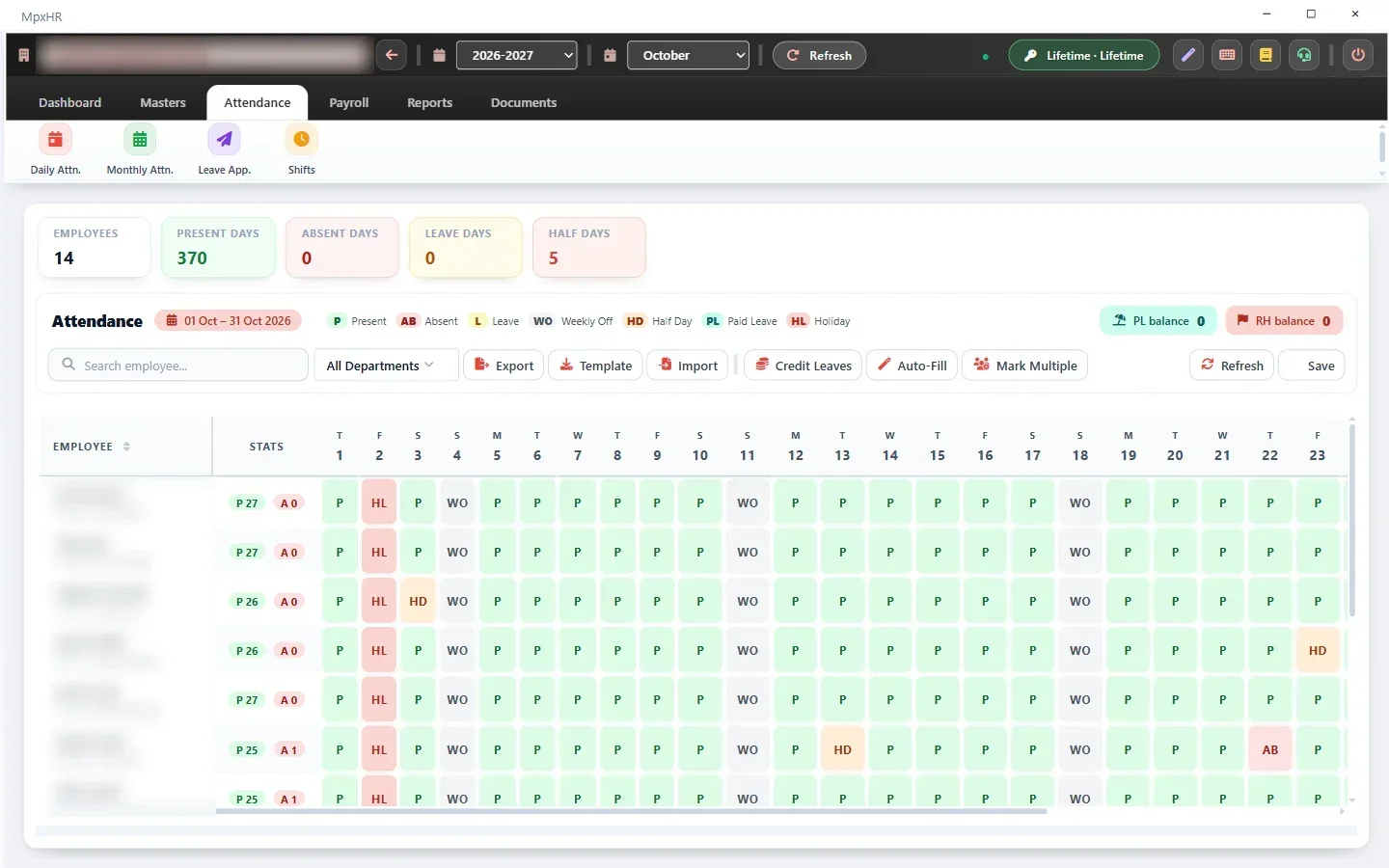
  1. Open Attendance › Monthly Attn.: every employee against every day as a colour-coded grid (P, A, L, WO, HD, PL, HL). Click a cell to change it.
  2. Use Mark Multiple to give one status to several employees over a date range, or Auto-Fill to mark the remaining blank days Present before payroll.
  3. To load many days at once click Tpl for the Excel layout, fill it and click Imp. One file can hold several months.
  4. The preview checks unknown employee codes, bad dates and duplicate employee + date pairs before anything is saved.
Mark and import attendance

6Manage leave requests

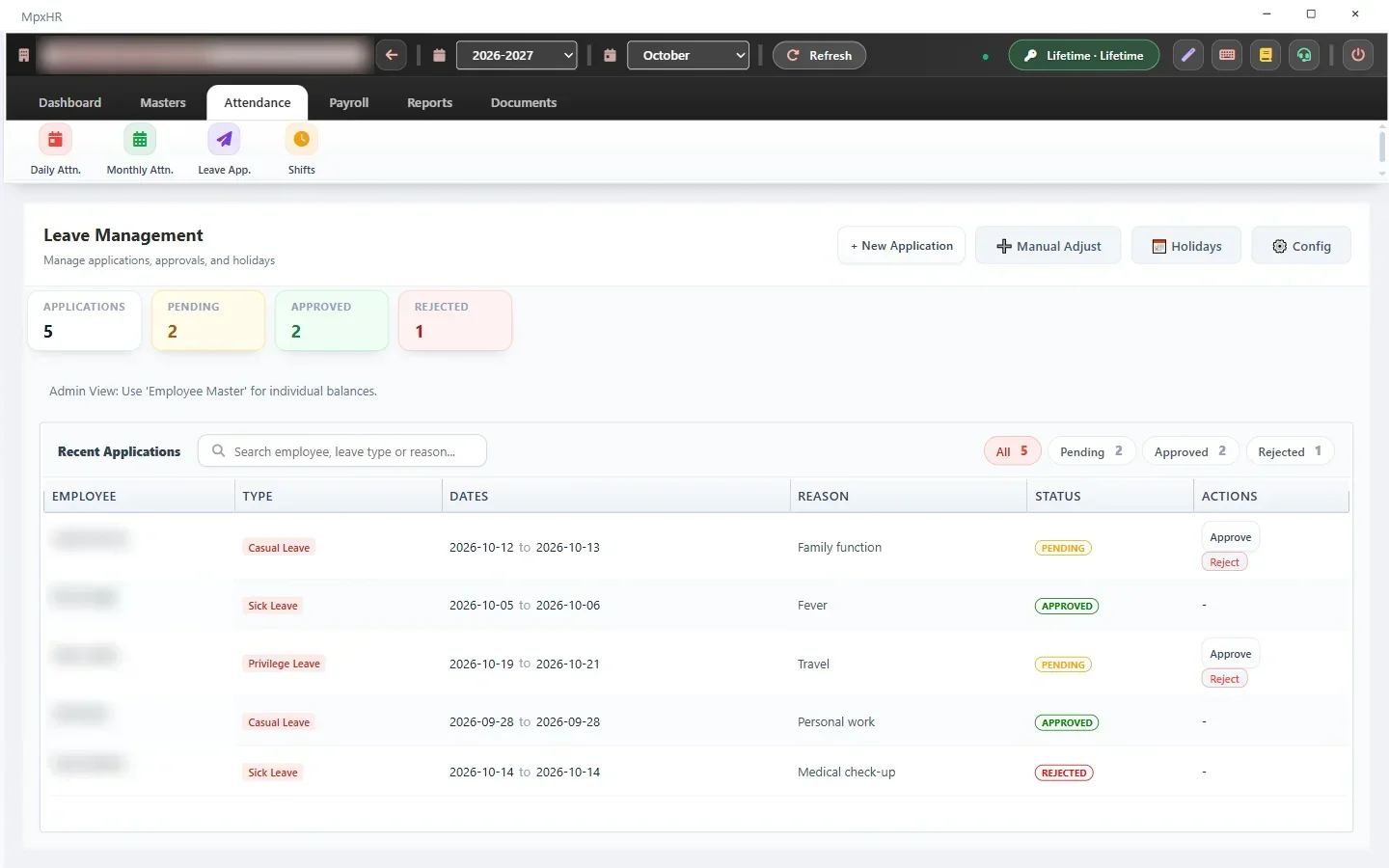
  1. Open Attendance › Leave App. and define leave types (with a yearly maximum) and the holiday calendar.
  2. Choose the employee, leave type, dates and reason and submit. An administrator approves or rejects.
  3. Balances are tracked automatically, and the employee can be emailed the decision if Email is set up.
Manage leave requests

7Run payroll and review Net Pay

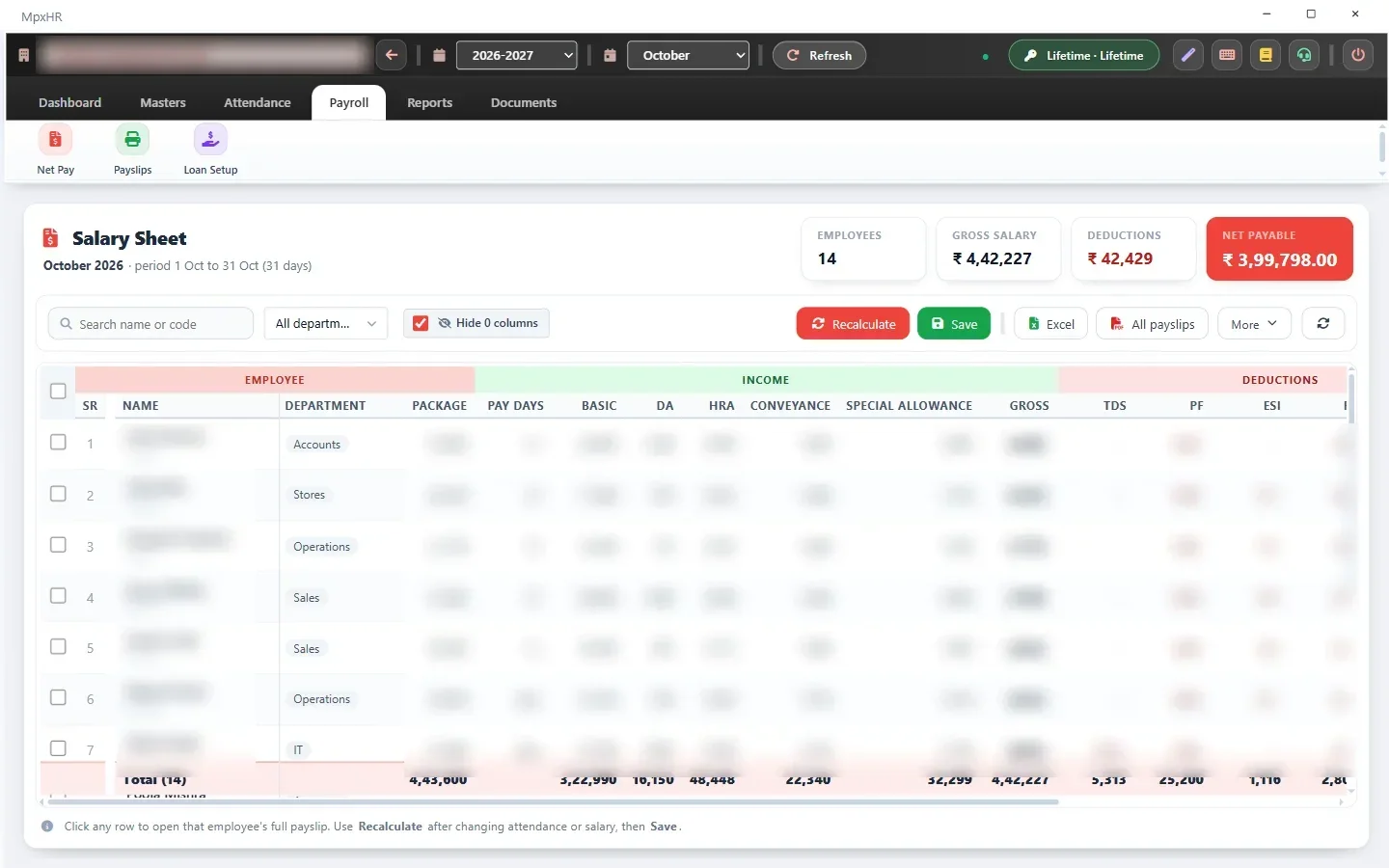
  1. Open Payroll › Net Pay and confirm the Company, Financial Year and Month in the top context bar.
  2. Click the refresh icon to calculate from attendance and the salary structure. PF, VPF, ESI, Professional Tax, TDS, loan EMI and your own deductions are applied automatically.
  3. Click any row to see its full detail, or tick employees and use Bulk Update Head to set or add one salary head for all of them (or import the amounts from Excel).
  4. Click Save to commit the payroll, then Export to Excel, or use Challan for the PF/ESI/PT/TDS deposit summary.
Run payroll and review Net Pay

8Create and email payslips

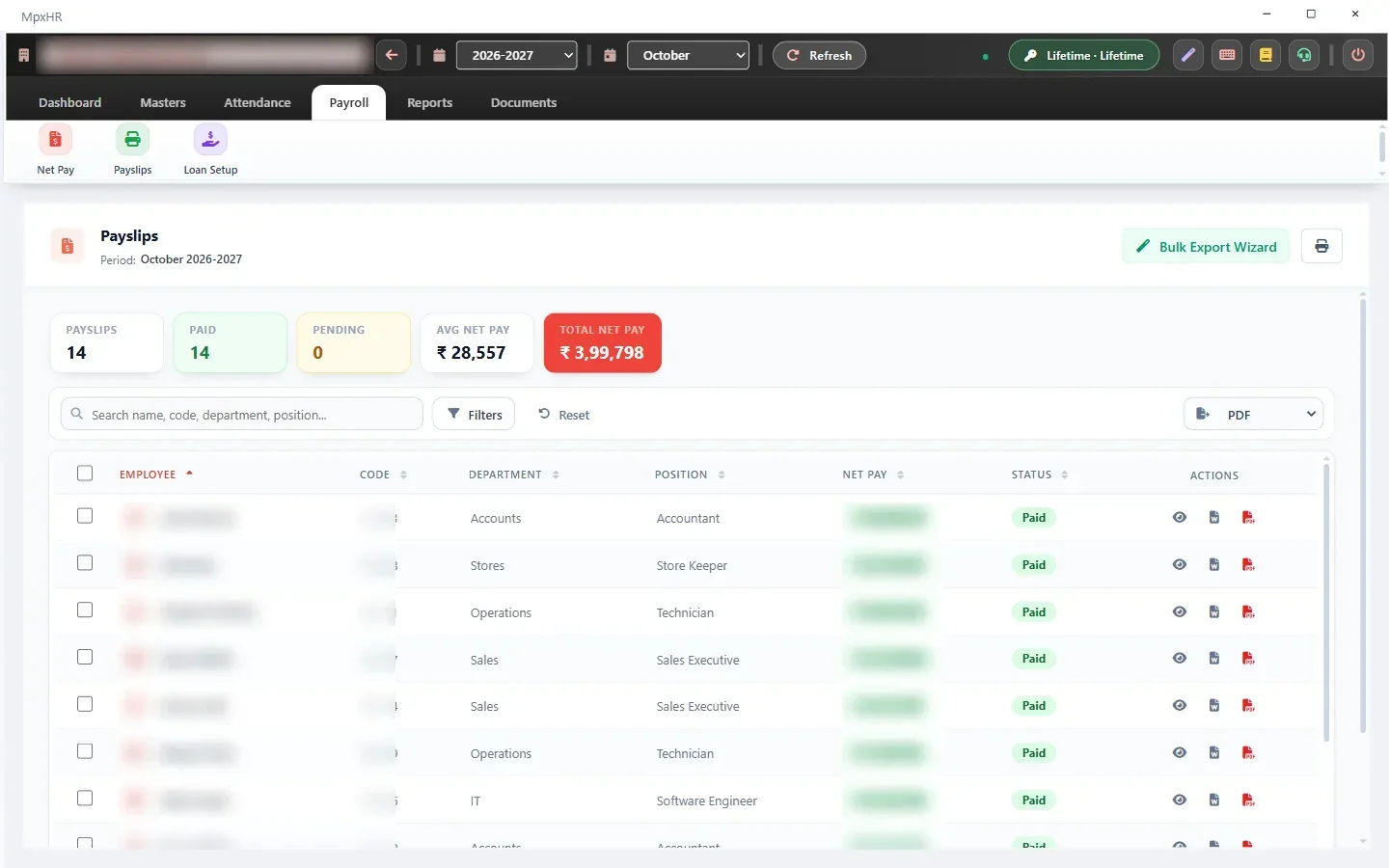
  1. Open Payroll › Payslips, which lists every processed payslip for the period. Click a row to preview it.
  2. The payslip shows your logo, income and deduction heads, loan details and amount in words.
  3. Choose Download PDF, Download Word or Print. Tick many employees for the Bulk Export Wizard (one ZIP).
  4. Tick employees and click Email Selected to mail each their payslip as a PDF (set up Email first). Use Masters › Payslip Designer to design your own layout.
Create and email payslips

9Reports, Form 16 and letters

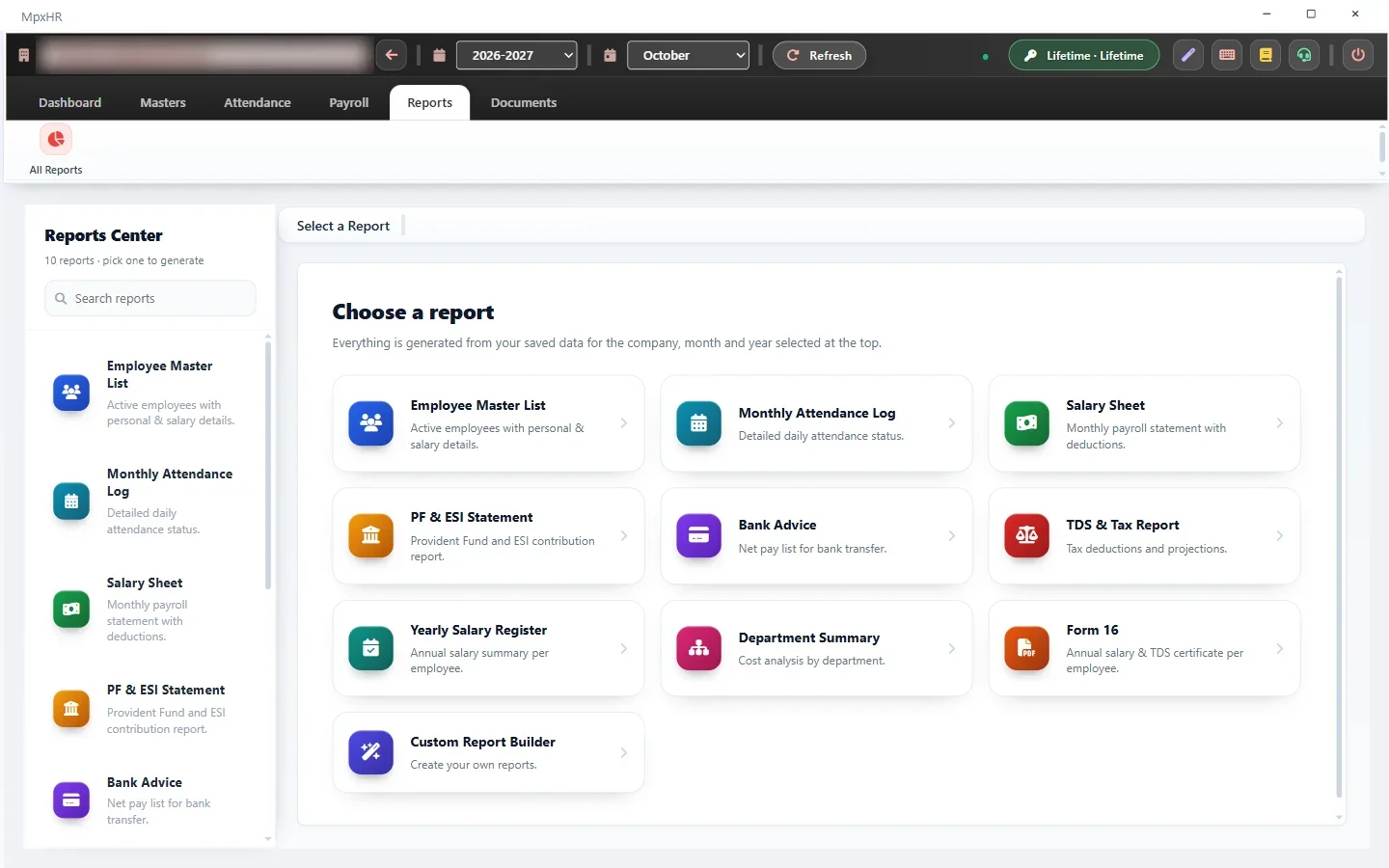
  1. Open Reports and choose a ready-made report such as the salary sheet, PF/ESI statement or attendance summary.
  2. Use Form 16 for the employee tax certificate.
  3. Build your own with the Custom Report Builder.
  4. In Documents choose a letter template, pick the employee and print or email it. Use the Signature (image) tag to place the signature.
Reports, Form 16 and letters

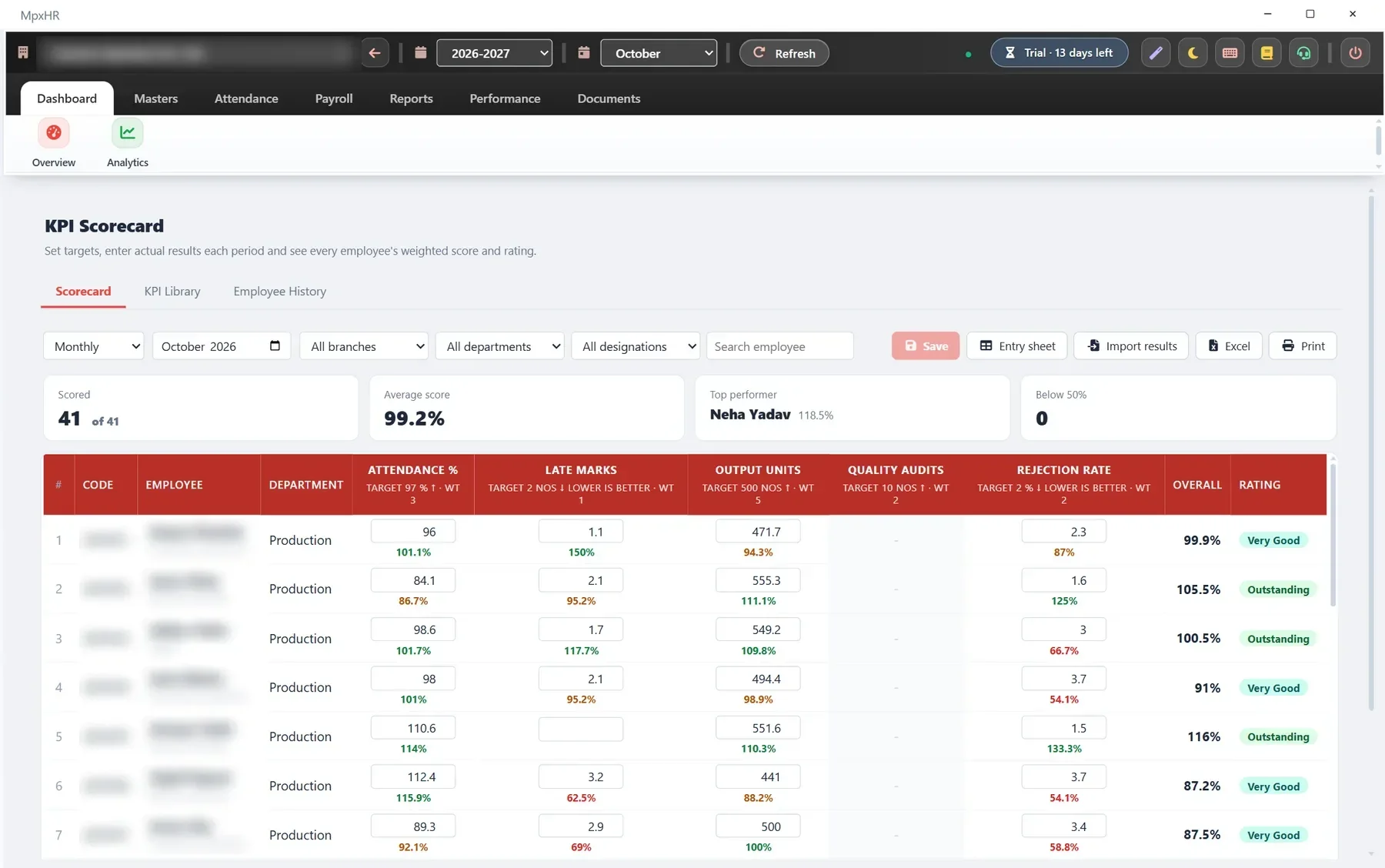
10Score your team with the KPI Scorecard

  1. Open Performance › KPI Scorecard › KPI Library and click New KPI. Give it a name, how often it is measured (monthly, quarterly or yearly), the unit, the target and a weight (how much it counts).
  2. Choose Higher is better (sales, output, attendance %) or Lower is better (rejections, late marks, complaints). You can limit a KPI to one department or designation.
  3. To add many KPIs at once click Template, fill the sheet in Excel and use Import KPIs.
  4. Open the Scorecard tab, pick the period, and type each employee's actual result. Press Enter to move to the next employee. The % against target, the weighted overall score and the rating (Outstanding, Very Good, Good, Needs Improvement, Poor) appear straight away.
  5. Click Save. To fill the sheet outside the program click Entry sheet, complete it in Excel or Google Sheets, then use Import results.
  6. Click an employee's name to see the score over time in Employee History. Excel and Print give you the whole scorecard.
Score your team with the KPI Scorecard

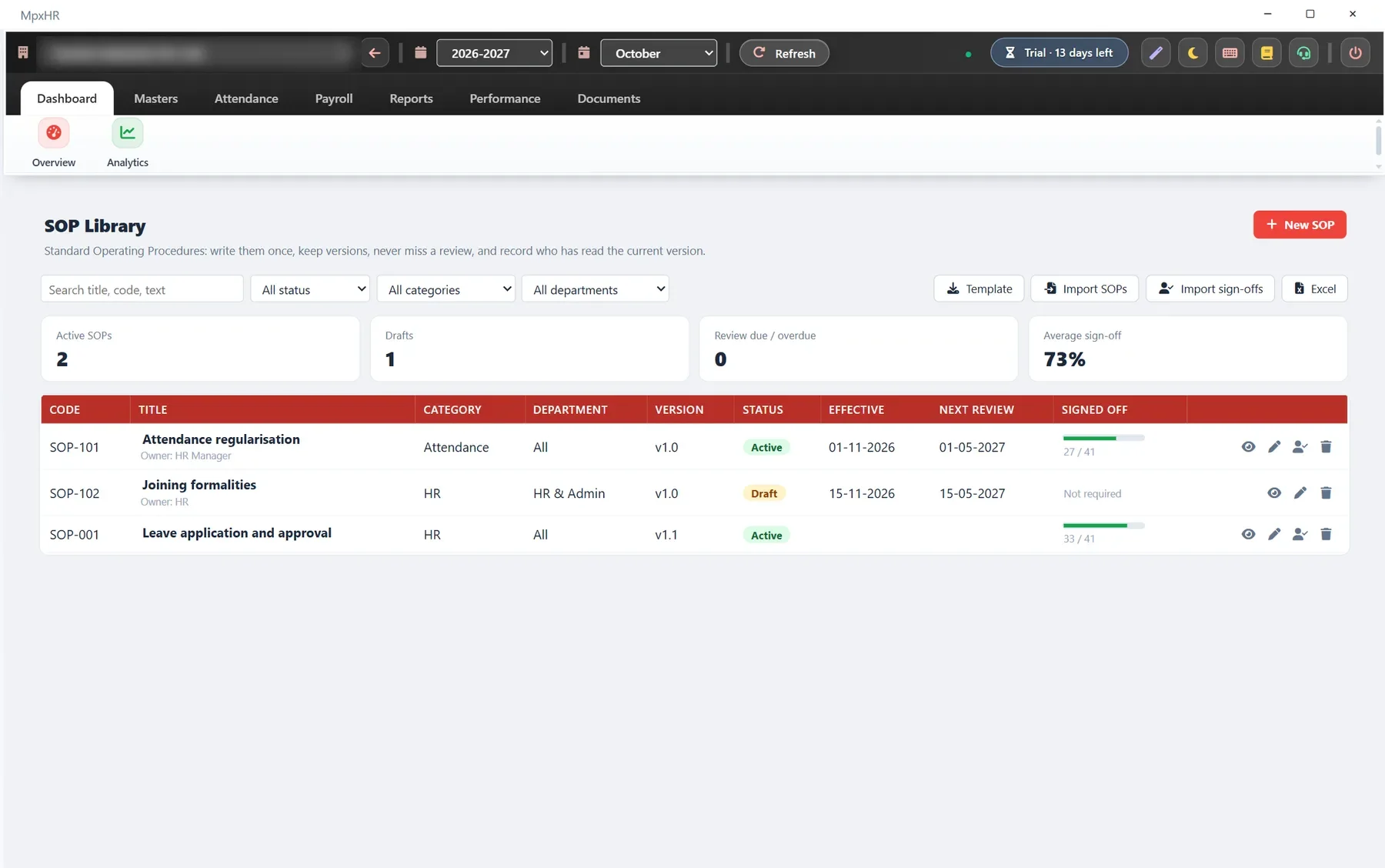
11Keep your SOPs with sign-off

  1. Open Performance › SOP Library and click New SOP. Add the code, title, category, department, owner, purpose, scope and the procedure (write steps like 1. First step or - bullet).
  2. Set the effective date and the next review date. The list shows Due in 13 days or Overdue so a review is never missed.
  3. Already have the document in Google Drive? Paste its https:// link in Document link; it opens with one click.
  4. When a live SOP changes, raise the version number (for example 1.0 to 1.1). The old versions stay in Version history and everyone needs to sign the new one.
  5. Open the Sign-off sheet (the person icon) to tick who has read the current version, import a list from Excel, or print a sheet for signatures.
  6. Use Template and Import SOPs to bring many SOPs in from Excel or from a Google Sheet downloaded as .xlsx.
Keep your SOPs with sign-off

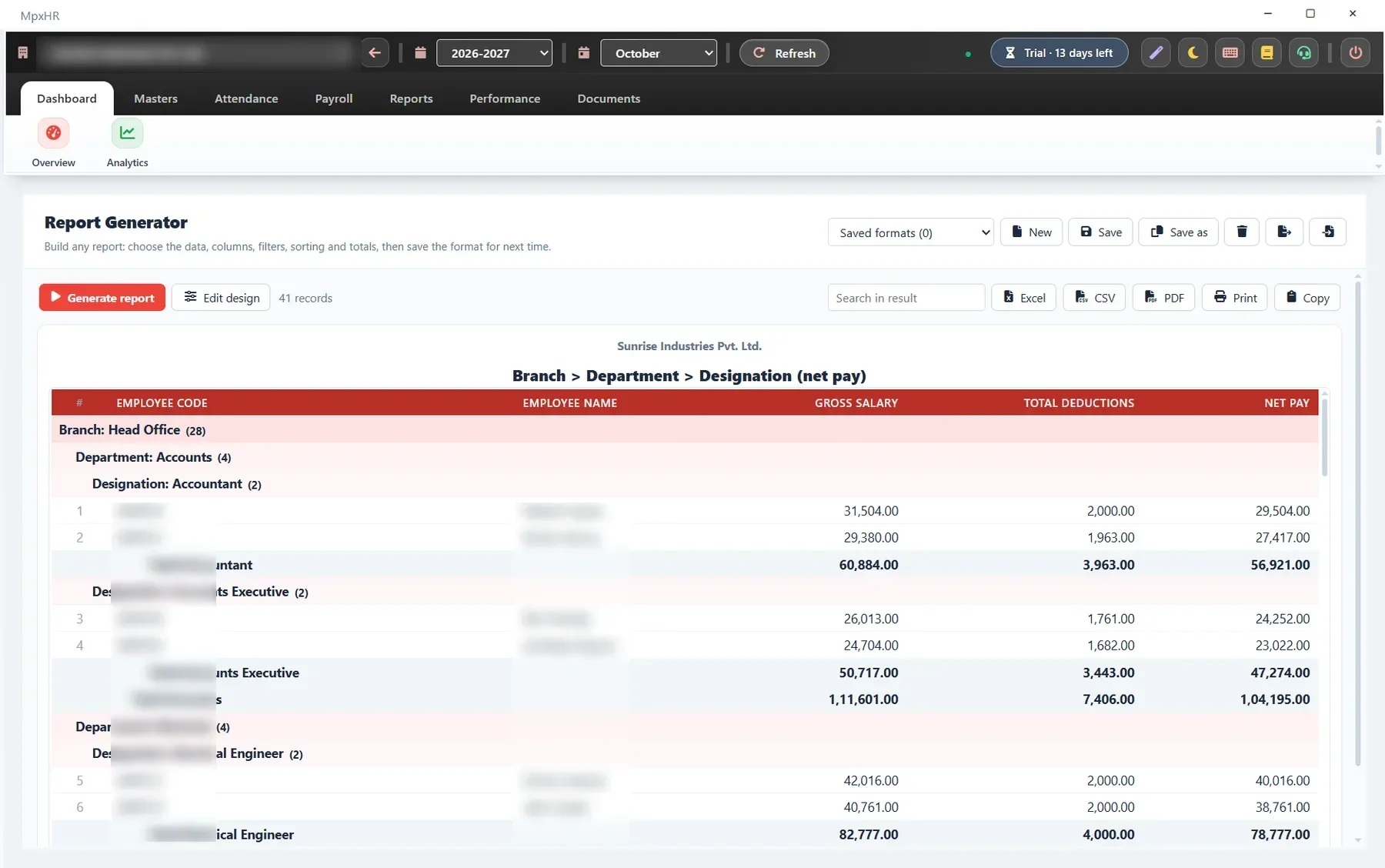
12Build any report with the Report Generator

  1. Open Reports › Report Generator. Start from a ready-made format (bank list, PF / ESI / UAN, salary register ...) or choose the data yourself: employees, payroll, daily attendance, attendance summary or leave.
  2. Click fields on the left to add columns; drag to reorder and rename any heading. For number columns pick Sum, Average, Min, Max or Count.
  3. Filter by branch, department, designation, category, status and period, and add conditions such as Absent days is greater than 3.
  4. Group by up to three levels (for example Branch › Department › Designation). Every group gets its own sub-total and a grand total at the end.
  5. Press Generate report, then export to Excel, CSV or PDF, or Print. Use Save to keep the format for next month.
Build any report with the Report Generator

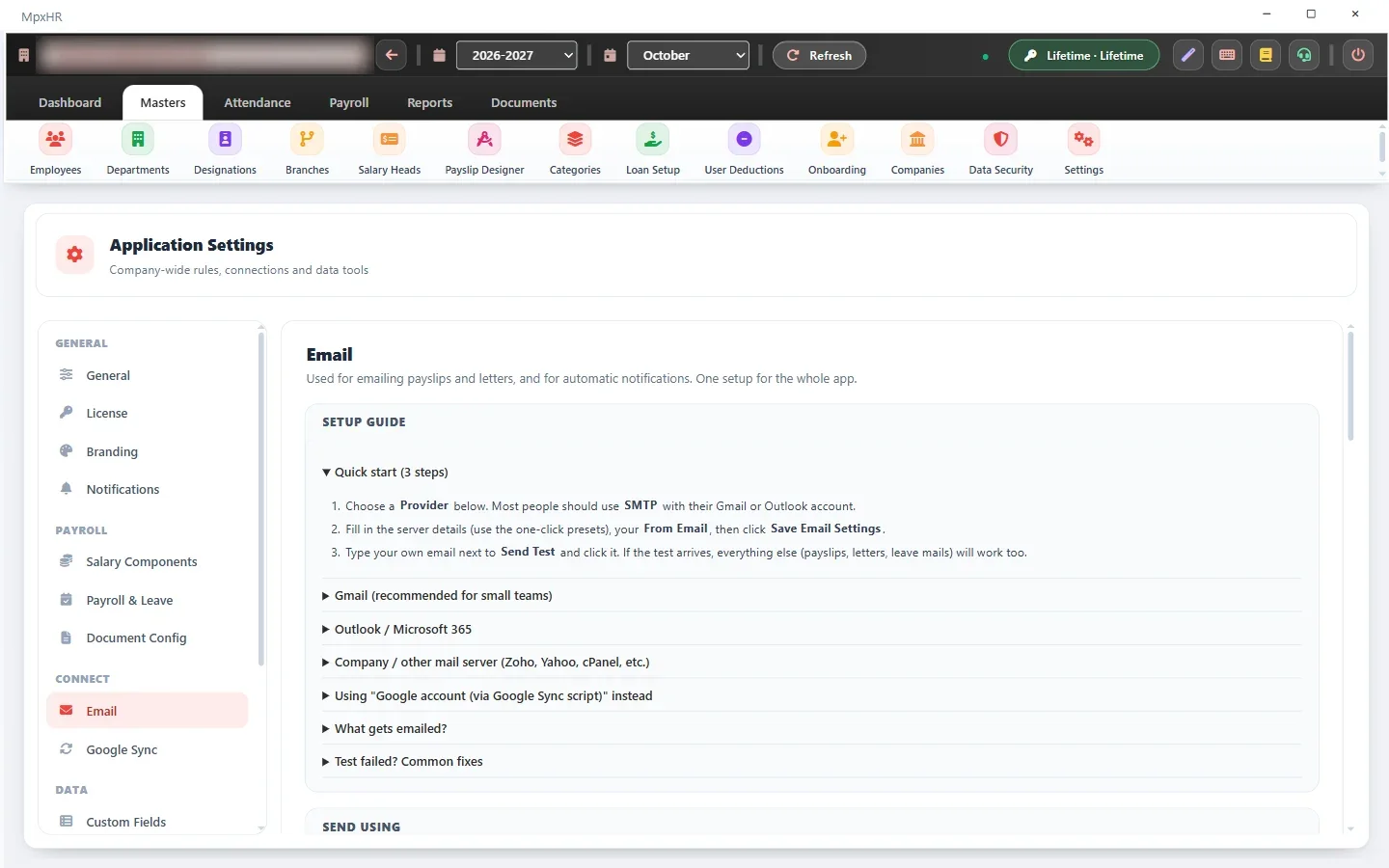
13Set up email (Gmail, Outlook, Zoho ...)

  1. Open Masters › Settings › Email and choose your provider (Gmail SMTP, Outlook, Zoho, Yahoo, any SMTP server or a Google account).
  2. For Gmail create an App Password in your Google account security page and paste it instead of the normal password.
  3. Send a test email, then edit the templates for payslip, letter, leave and birthday mails.
Set up email (Gmail, Outlook, Zoho ...)

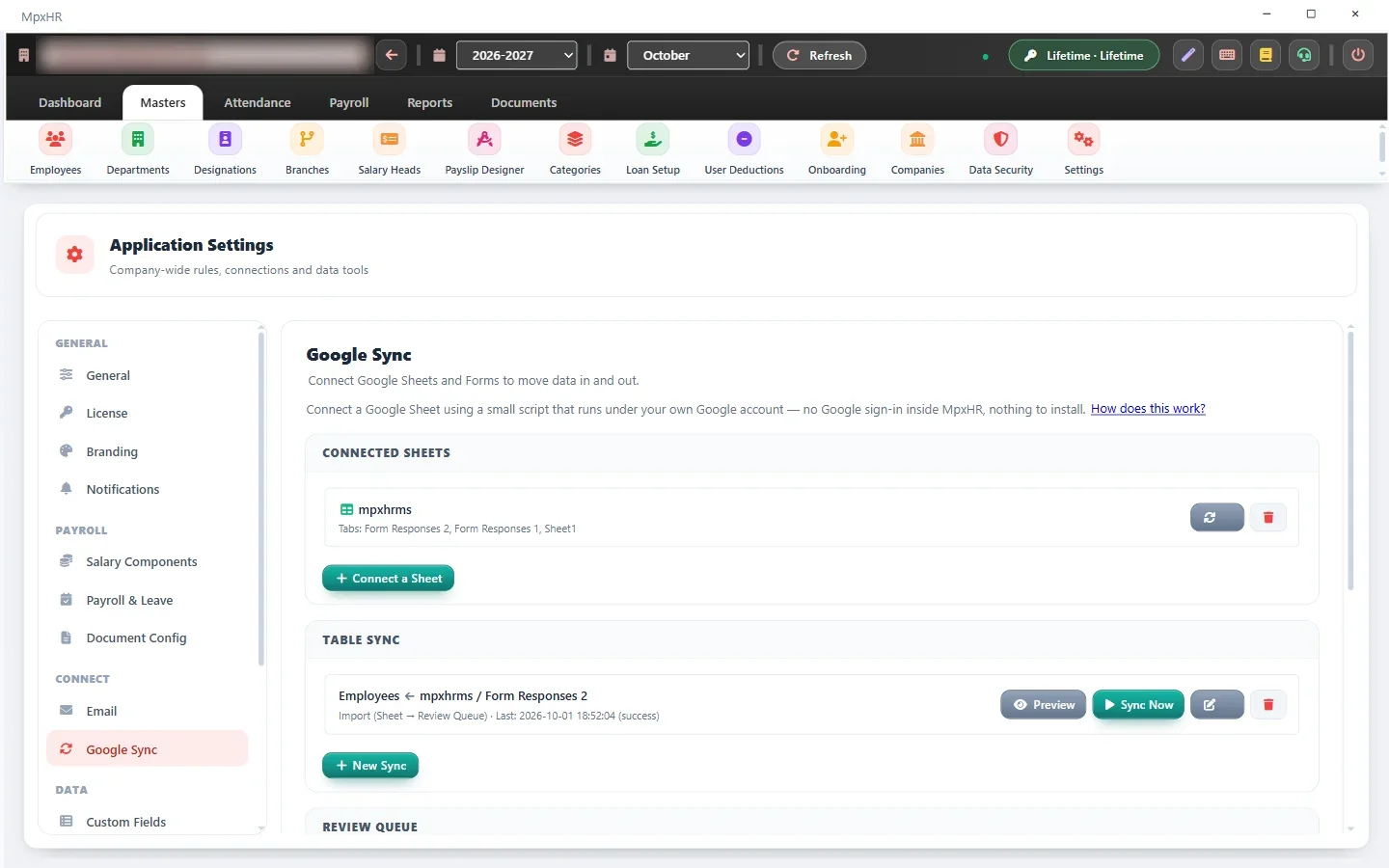
14Connect Google Sheets and Forms

  1. Open Settings › Google Sync › Connect a Sheet and copy the script shown.
  2. Paste it into Google Apps Script, deploy it as a web app and paste the web-app URL back in MpxHR.
  3. Export a table to the sheet, or import rows; imported rows wait in a Review Queue until you approve them.
  4. Use the Form Builder to create a Google Form whose answers fill several tables at once.
Connect Google Sheets and Forms

15Onboard a new joiner with the Joiner Form

  1. Open Masters › Onboarding and click New Joiner. A joining checklist is created for the person.
  2. Click Joiner Form › Questions & documents and tick what the joiner should fill in and upload. Mark compulsory ones as Must fill.
  3. Click Get link / Share. The first time, follow the short guide to paste the script into your Google Sheet, then press Check now. Send the link by WhatsApp or email.
  4. Click View responses to see what came in, then Add new joiners to bring them and their documents into MpxHR.
  5. Select a joiner and click Make Employee. The details, photo, signature and documents are copied; open Employees to add the code and salary.

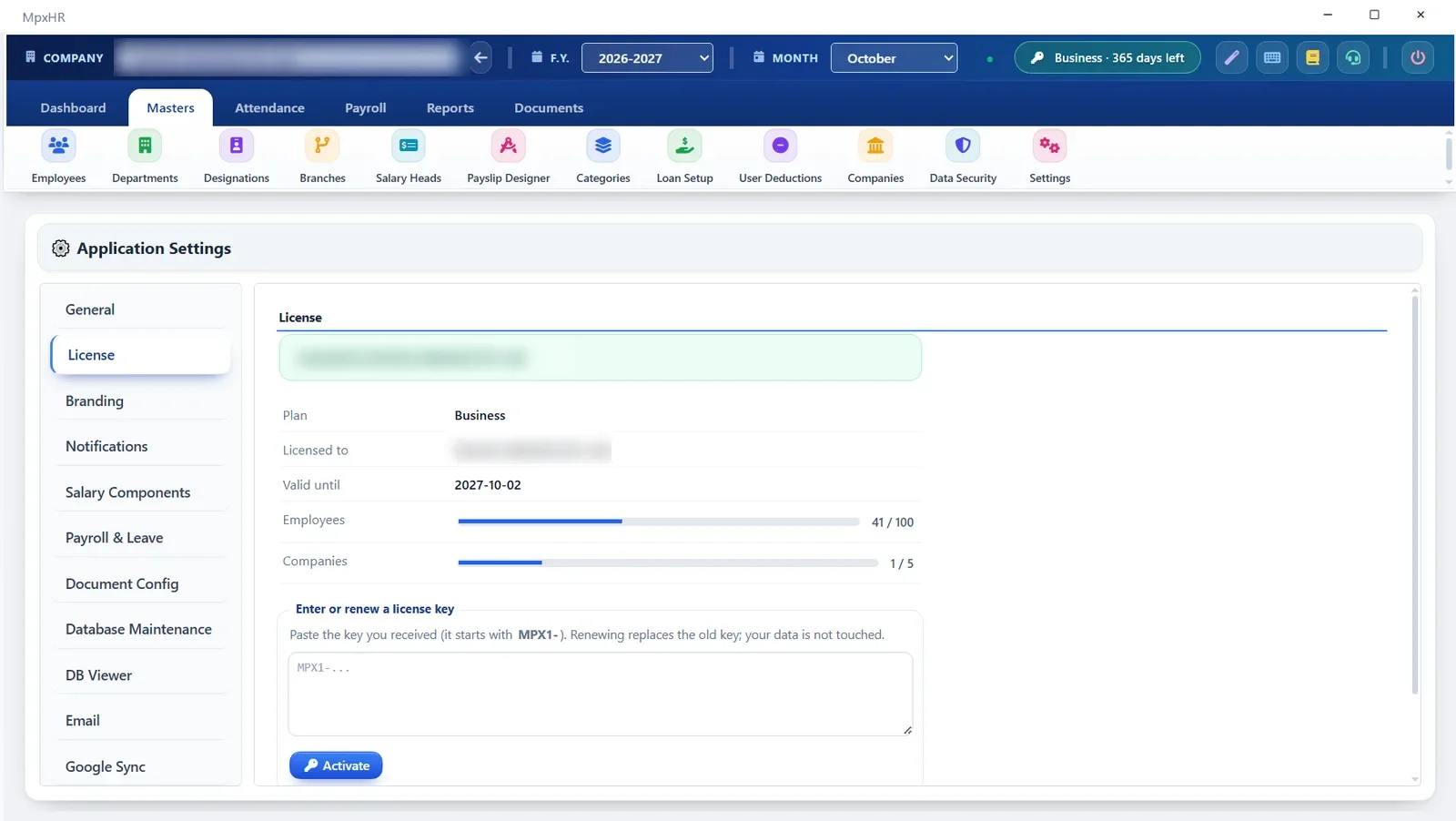
16Enter your license key

  1. Open Masters › Settings › License (near the top of the list) or click the license chip in the top bar.
  2. Paste the key you received from us and click Activate.
  3. The page shows your plan, employee and company limits and the expiry date.
  4. To renew or upgrade just enter the new key; your data is untouched.
Enter your license key

17Back up and restore your data

  1. Open Masters › Settings › Database Maintenance. Choose Everything (data + documents) or Data only; a password can encrypt a data-only backup. The card at the top shows when you last backed up.
  2. Tick Back up automatically every time I close MpxHR, choose a folder (a Google Drive or OneDrive folder gives an off-site copy) and how many backups to keep.
  3. To restore click Choose a backup file, or Restore on a recent automatic backup. A safety copy of your current data is saved first and MpxHR restarts afterwards.
  4. If an admin password is lost, use the master recovery password set in Settings › Security & Users.
Back up and restore your data

Need more detail? The full documentation covers every screen. Stuck? Message us on WhatsApp.

Want us to set it up with you?

We can install, import your data and train your team.

Need help setting up MpxHR?

Installation, data import and training in Hindi and English.

Chat on WhatsApp
Download